Edit notifications in Google Docs, Sheets and Slides
Learn to use Google Docs, Sheets and Slides' smart notifications to get visibility and act at the right moment
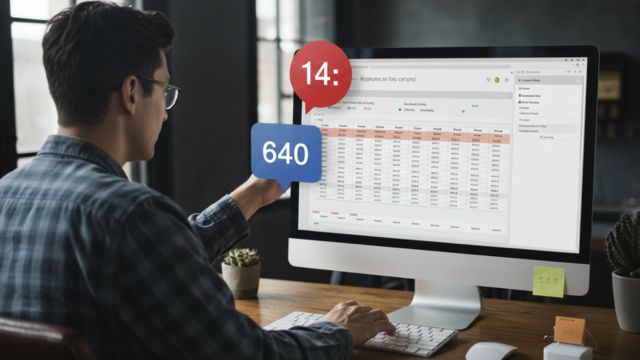
Have you ever caught yourself anxiously checking a document every 5 minutes, wondering: "Has he even started his part yet?" The anxiety of depending on other people's collaboration is real, and it can often cost your project dearly.
When the delivery deadline matters and it's getting close, you start asking yourself: "Has he even started?" Checking the document or chasing the person every five minutes is unproductive.
Google Workspace has an option to solve this: notifications
How to set up notifications in Google Docs, Sheets or Slides.
The problem behind the anxiety is the lack of real-time visibility
Even if you've already agreed on a check-in and explained how important the delivery is, the lack of a clear progress signal generates anxiety that turns into micromanagement, and as a result, staying in passive waiting mode can cost you dearly. That's exactly right, isn't it?
The big problem is the lack of real-time visibility. You don't know if your colleague is running late or simply hasn't had time to start the task yet. Without that information, you lose the chance to step in in time, offer help, or proactively remind your colleague about the deadline.
The result
Is the unpleasant surprise of an incomplete document close to the deadline, causing unnecessary stress and the need to scramble to fix the problem, instead of focusing on the project's next steps.
An alternative solution
Instead of relying on manual checks or nagging to find out if there's been progress, you can set up alerts to get an automatic email whenever the document is changed.
This feature gives you the control and the information you need to act at the right moment, turning passive waiting into active management. That way, you'll be alerted at the right time, without having to interrupt your work.
Step by Step:
Follow the steps below to get alerts about important updates:
-
Open the document, spreadsheet or presentation you need to monitor.
-
In the top menu, click Tools.
-
Select Notification settings.
-
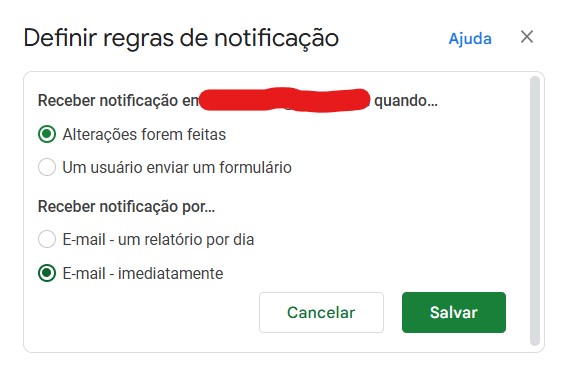
In the side menu that opens, you'll have two main options to choose from:
- New comments: you'll get notified whenever someone leaves a new comment. For urgent documents, I use this option.
- Document changes: you'll get notified about changes to the content.
- When you select Document changes, you can choose the **frequency of alerts: **
-
Daily digest: you'll get one email a day with all the changes made. I like this option for project plans, like a work plan, where the cadence can be lower and tracking is daily.
-
Immediate email notifications: you'll get an instant email for every change, detailing what was changed and who made it. This option is great for documents with sensitive information or that carry a lot of value. The downside is getting a lot of emails if the document changes constantly.
Pick the option that best fits your needs. If you need real-time visibility, immediate email notifications is the best choice.
Turn waiting into action
Your project should always be in always-closing mode, I talk more about this in this article (read it here), staying in passive waiting mode doesn't help things move forward.
This feature isn't just a notification. It's your tool for turning passive waiting into active management, taking back control of the action and making sure you're always one step ahead, you're the one responsible for your delivery.
You could, for example, send a polite reminder to a colleague as soon as you notice collaboration hasn't started yet. That small action can make the difference between a project delivered on time and a last-minute problem. If you struggle with a lack of team collaboration, this article can help. Read it here.
Try this tip the next time you're collaborating on a document and share your experience in the comments!
Take care!