Timer in Google Meet: how to turn on the meeting timer
See how to add a timer to Google Meet: turn on the meeting timer to manage time, keep focus and bring a sense of urgency to the team.
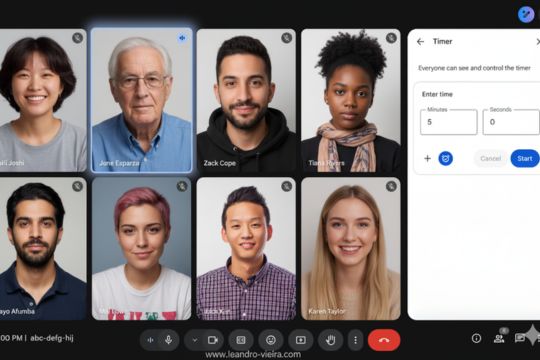
Running and attending meetings is part of working in the corporate world. The perception that meetings eat up too much time is widely shared, and I believe that's your reality too.
Google announced an important feature to boost meeting productivity: setting timers in Google Meet on the web. In this blog article I list 6 other features that are useful day to day, and in this other one I show how Gemini already helps log what was decided in your meetings.
The Google Meet timer is a native feature that lets you set a fixed time for the entire meeting or for each agenda item, giving all participants a shared, visual sense of the time remaining.
What can you do with the timer in Google Meet?
Now, all Google Workspace users, individual Workspace subscribers and users with personal Google accounts will be able to create meeting timers in the Google Meet sidebar.
The meeting organizer can manage the timer and grant controls if host controls are turned on. If host controls are turned off, anyone in the meeting can manage it.
Once the timer is started, it'll be visible to all meeting participants. You can also pause or cancel the timer after it starts.
Why does a timer in meetings matter?
Timers can be a valuable feature for organizers and facilitators of online meetings to improve focus, manage time, regain control of the topics, and give visibility and a sense of urgency.
By providing a visible, shared sense of time, they help structure the meeting and boost productivity.
Note: at this time, this feature is only available on the web version.
How do you get the timer working in your meetings?
First, you need to turn on the feature.
Google Workspace admins: this feature will be turned on by default. There's no admin control for this feature.
Users: this feature will be turned off by default. Turn it on by clicking Activities > Timer during a meeting.
Turning on the timer in the meeting
To join a meeting on your computer, open Google Meet.
- In the bottom-right corner, click Meeting tools and then Timer.
- Set the time in minutes and seconds.
- To start the countdown, click Start
While the timer is running, you can:
- Pause: Temporarily stop the timer.
- Resume: Resume a paused timer.
- Extend: to add a minute, click Add and the total time on the timer will increase.
- Optional: to turn the sound notification on or off, click Alarm. This is only available when host controls are turned off.
What happens?
When the timer hits zero, you'll get a sound notification. You can manage the timer if host controls are turned on.
If host controls are turned off, anyone in the meeting can manage it.
Now it's up to you
The goal now is for you to put this feature into practice and run your meetings even better. The initial challenge is remembering to turn on the settings, but once you've started, it'll quickly become a good habit and your meetings will be perceived as having a much higher level of organization.
Share it with your coworkers and get the most out of Google Workspace in your day-to-day work.